A woman using a cell phone while sitting at a table with a cup of coffee and reading an eBook on her tablette.

ePub, comment lire un eBook (tablette et PC) ?

Pour ouvrir un livre EPUB, utilisez une application de lecture compatible avec votre appareil. Sur ordinateur, Calibre permet aussi de gérer une bibliothèque. Sur Kindle, distinguez l’envoi via Send to Kindle de la copie d’un fichier brut par USB.

EPUB : un format de livre, pas une application

Un EPUB contient le texte, les images et la structure d’un livre numérique. Son affichage peut s’adapter à la taille de l’écran, mais certains ouvrages utilisent une mise en page fixe. La compatibilité dépend du lecteur, des fonctions du livre et d’éventuelles protections DRM.

Sur Windows, macOS ou Linux avec Calibre

Installez Calibre depuis son site officiel, ajoutez votre fichier avec Ajouter des livres, puis choisissez Lire. Conservez une copie de l’EPUB d’origine avant toute conversion.

Si le livre ne s’ouvre pas, vérifiez qu’il s’agit bien d’un EPUB complet. Un fichier ACSM fourni par une bibliothèque ou une boutique correspond à une procédure de téléchargement et d’autorisation ; ce n’est pas le livre lui-même. Suivez alors les instructions du fournisseur.

Sur iPhone, iPad ou Android

Sur les appareils Apple, ouvrez l’EPUB dans Livres depuis Fichiers ou le menu de partage. Sur Android, utilisez un lecteur EPUB maintenu et compatible avec vos fichiers. Vérifiez aussi les possibilités de lecture hors ligne et de sauvegarde de vos annotations.

Pour un livre protégé, utilisez l’application ou le système d’autorisation indiqué par la librairie. Une application qui sait lire un EPUB sans DRM ne prend pas nécessairement en charge le mécanisme de protection de votre achat.

Sur Kindle : envoyer l’EPUB pour conversion

Le service Send to Kindle accepte des EPUB compatibles et les traite pour la bibliothèque Kindle. L’envoi peut se faire par le site, une application ou une adresse d’envoi autorisée selon votre configuration. Vérifiez le résultat et la synchronisation sur votre appareil.

Cela ne signifie pas que toute liseuse Kindle lit nativement un EPUB copié dans son dossier Documents. Ne confondez pas la conversion réalisée par un service avec les formats que l’appareil affiche directement.

Transférer par USB

Pour une Kindle, Calibre peut convertir un EPUB non protégé en AZW3, puis transférer un format pris en charge par l’appareil. Vérifiez le modèle et la connexion : la procédure et les logiciels nécessaires peuvent varier, notamment sur macOS.

Sur une liseuse qui lit nativement EPUB, le transfert USB peut simplement consister à copier le fichier selon les instructions du fabricant. Dans les deux cas, éjectez proprement l’appareil et vérifiez l’apparition du livre.

Que faire si le livre ne s’affiche pas ?

  • Vérifier le format réel et la présence éventuelle de DRM.
  • Essayer le fichier dans un lecteur compatible sur ordinateur.
  • Attendre la synchronisation après un envoi en ligne.
  • Contrôler l’espace disponible sur la liseuse.
  • Tester un EPUB sans protection dont le fonctionnement est connu.

Pensez aussi à sauvegarder votre bibliothèque avec la règle 3-2-1. La question des formats et des protections se retrouve également dans le guide de la musique sans DRM.

Documentation

Calibre : formats et conversion ; Amazon : Send to Kindle.

Here we go round the mulberry bush, singing and dancing in a joyful circle.

Here We Go Round the Mulberry Bush

Introduction

« Here We Go Round the Mulberry Bush » is not just a traditional nursery rhyme; it’s a formative part of childhood for many people around the world. This enchanting singing game has been passed down from generation to generation, captivating young minds and fostering a sense of community and fun.

With its simple yet memorable lyrics and universally relatable themes, the nursery rhyme holds a special place in global folklore. This article seeks to delve deep into the intricate world of this nursery rhyme, exploring its rich history, diverse variations, and the underlying meanings and messages that have made it a timeless classic.

The Nursery Rhyme

Before embarking on this fascinating journey, it’s essential to familiarize ourselves with the most popularly recited version of the nursery rhyme. This rendition has served as the standard form for many English-speaking households.

Here we go round the mulberry bush,
The mulberry bush, the mulberry bush,
Here we go round the mulberry bush,
On a cold and frosty morning.

This is the way we wash our hands,
Wash our hands, wash our hands,
This is the way we wash our hands,
On a cold and frosty morning.

This is the way we brush our hair,
brush our hair, brush our hair,
This is the way we brush our hair,
On a cold and frosty morning.

This is the way we go to school,
Go to school, go to school,
This is the way we go to school,
On a cold and frosty morning.

This is the way we wave bye-bye,
Wave bye-bye, wave bye-bye,
This is the way we wave bye-bye,
On a cold and frosty morning.
Here We Go Round The Mulberry Bush

Here we go round the mulberry bush

Origins and history

England: the birthplace

Many believe that « Here We Go Round the Mulberry Bush » originated in England. Historical records hint at the rhyme being popular as far back as the 19th century. Intriguingly, the « mulberry bush » in question is often thought to represent a prison exercise yard. In this interpretation, the song’s roots lie in the harsh realities of historical English penitentiaries, where prisoners would be led around a mulberry tree as a form of exercise.

Theories and speculations

The song’s origins are not just limited to the prison yard theory. Over the years, scholars and enthusiasts have developed various hypotheses about its genesis. One compelling theory suggests that the song initially served as a way for children to mimic adult activities. The original game accompanying the song involved children forming a circle and imitating daily chores, reflecting the societal norms and routines of the time.

Lire Here We Go Round the Mulberry Bush

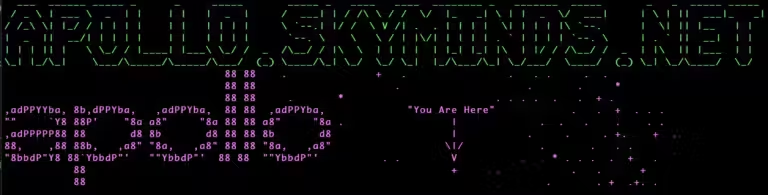
An image of a computer screen with a green and purple background displaying the Message Of The Day (MOTD) on Ubuntu Server.

Changer le Message Of The Day (MOTD) sous Ubuntu Server

Le Message Of The Day (communément appelé MOTD) est un message d’accueil ou des notifications importantes que les administrateurs de serveurs peuvent configurer pour s’afficher lorsqu’un utilisateur se connecte au serveur via SSH.

Ce tutoriel vous montre comment mettre à jour et personnaliser le MOTD sur un serveur Ubuntu 22.04.

Prérequis

  • Serveur Ubuntu 22.04 avec accès root ou un utilisateur avec des privilèges sudo.
  • Accès SSH au serveur.

Étape 1 : connexion au Serveur

Connectez-vous à votre serveur Ubuntu via SSH:

ssh USER@SERVER_IP -pPORTLangage du code : CSS (css)

Étape 2 : vérifier le MOTD existant

Pour voir le MOTD actuel, utilisez la commande suivante :

cat /run/motd.dynamic

Étape 3 : modifier le MOTD dynamique

Ubuntu 22.04 utilise des scripts dans le répertoire /etc/update-motd.d/ pour générer une partie du MOTD dynamiquement. Vous pouvez ajouter, supprimer ou modifier les scripts dans ce répertoire pour personnaliser davantage le MOTD.

Entête MOTD

Nous allons créer un entête qui contient le nom de notre serveur en ASCII art, ce qui nous permettra de bien l’identifier lors de nos sessions SSH:

sudo nano /etc/update-motd.d/00-custom

Et on y ajoute notre script bash:

#!/bin/sh

# Reset
Color_Off='\033[0m'       # Text Reset

# Bold
BBlack='\033[1;30m'       # Black
BRed='\033[1;31m'         # Red
BGreen='\033[1;32m'       # Green
BYellow='\033[1;33m'      # Yellow
BBlue='\033[1;34m'        # Blue
BPurple='\033[1;35m'      # Purple / Magenta
BCyan='\033[1;36m'        # Cyan
BWhite='\033[1;37m'       # White

# Set the text color to green
printf "$BGreen"

# https://patorjk.com/software/taag/#p=display&f=Doom&t=APOLLO%20.%20SKYMINDS%20.%20NET
cat << "EOF"
  ___  ______ _____ _      _     _____       _____ _   ____   ____  ________ _   _______  _____       _   _  _____ _____
 / _ \ | ___ \  _  | |    | |   |  _  |     /  ___| | / /\ \ / /  \/  |_   _| \ | |  _  \/  ___|     | \ | ||  ___|_   _|
/ /_\ \| |_/ / | | | |    | |   | | | |     \ `--.| |/ /  \ V /| .  . | | | |  \| | | | |\ `--.      |  \| || |__   | |
|  _  ||  __/| | | | |    | |   | | | |      `--. \    \   \ / | |\/| | | | | . ` | | | | `--. \     | . ` ||  __|  | |
| | | || |   \ \_/ / |____| |___\ \_/ /  _  /\__/ / |\  \  | | | |  | |_| |_| |\  | |/ / /\__/ /  _  | |\  || |___  | |
\_| |_/\_|    \___/\_____/\_____/\___/  (_) \____/\_| \_/  \_/ \_|  |_/\___/\_| \_/___/  \____/  (_) \_| \_/\____/  \_/
EOF

# Set the text color to magenta
printf "$BPurple"

# Left image lines
left1="                                   88 88  "
left2="                                   88 88  "
left3="                                   88 88  "
left4=",adPPYYba, 8b,dPPYba,   ,adPPYba,  88 88  ,adPPYba,"
left5="\"\"     \`Y8 88P'    \"8a a8\"     \"8a 88 88 a8\"     \"8a"
left6=",adPPPPP88 88       d8 8b       d8 88 88 8b       d8"
left7="88,    ,88 88b,   ,a8\" \"8a,   ,a8\" 88 88 \"8a,   ,a8\""
left8="\"8bbdP\"Y8 88\`YbbdP\"'   \"\"YbbdP\"'  88 88  \"\"YbbdP\"'"
left9="           88                                          "
left10="           88                                         "

# Right image lines
right1=" .              +   .                .   . .     .  ."
right2="                   .                    .       .     *"
right3="  .       *                        . . . .  .   .  + ."
right4="            \"You Are Here\"            .   .  +  . . ."
right5=".                 |             .  .   .    .    . ."
right6="                  |           .     .     . +.    +  ."
right7="                 \\|/            .       .   . ."
right8="         . .        V          .    * . . .  .  +   ."
right9="               +      .           .   .      +"
right10="                               .       . +  .+. ."

# Combine and print
echo "$left1 $right1"
echo "$left2 $right2"
echo "$left3 $right3"
echo "$left4 $right4"
echo "$left5 $right5"
echo "$left6 $right6"
echo "$left7 $right7"
echo "$left8 $right8"
echo "$left9 $right9"
echo "$left10 $right10"

# STATS
upSeconds="$(/usr/bin/cut -d. -f1 /proc/uptime)"
secs=$((${upSeconds}%60))
mins=$((${upSeconds}/60%60))
hours=$((${upSeconds}/3600%24))
days=$((${upSeconds}/86400))
UPTIME=$(printf "%d days, %02dh%02dm%02ds" "$days" "$hours" "$mins" "$secs")

# get the load averages
read one five fifteen rest < /proc/loadavg

# text in yellow
printf "$BYellow"

echo "
   .~~.   .~~.    `date +"%A, %e %B %Y, %r"`
  '. \ ' ' / .'   `uname -srmo`
   .~ .~~~..~.
  : .~.'~'.~. :   Uptime.............: ${UPTIME}
 ~ (   ) (   ) ~  Memory.............: `cat /proc/meminfo | grep MemFree | awk {'print $2'}`kB (Free) / `cat /proc/meminfo | grep MemTotal | awk {'print $2'}`kB (Total)
( : '~'.~.'~' : ) Load Averages......: ${one}, ${five}, ${fifteen} (1, 5, 15 min)
 ~ .~ (   ) ~. ~  Running Processes..: `ps ax | wc -l | tr -d " "`
  (  : '~' :  )   IP Addresses.......: `ip a | grep glo | awk '{print $2}' | head -1 | cut -f1 -d/` and `wget -q -O - https://icanhazip.com/ | tail`
   '~ .~~~. ~'    Weather............: `curl -s "https://rss.accuweather.com/rss/liveweather_rss.asp?metric=1&locCode=EUR|FR|FR|NANTES|" | sed -n '/Currently:/ s/.*: \(.*\): \([0-9]*\)\([CF]\).*/\2°\3, \1/p'`
       '~'
"

# text default colour
printf "$Color_Off"Langage du code : PHP (php)

Cela affiche le nom du serveur (apollo.skyminds.net) puis une petite frise, et enfin les statistiques ainsi que la météo pour Nantes. Vous pouvez modifier la ville dans l’avant-dernière ligne.

Notez que j’ai compilé deux images pour qu’elles s’affichent sur les mêmes lignes: le mot « apollo » en ASCII art et une version de l’univers avec le texte « You are here! ». Il faut jouer avec l’indentation mais au bout de quelques essais, cela rend plutôt pas mal je trouve.

Rendez le script exécutable :

sudo chmod +x  /etc/update-motd.d/00-custom

Lancez la compilation de tous les modules dynamiques pour obtenir le MOTD final qui sera affiché à chaque connexion SSH:

run-parts /etc/update-motd.d/ > /run/motd.dynamicLangage du code : JavaScript (javascript)

Lire Changer le Message Of The Day (MOTD) sous Ubuntu Server